Shopify portfolio page: how to build one that sells
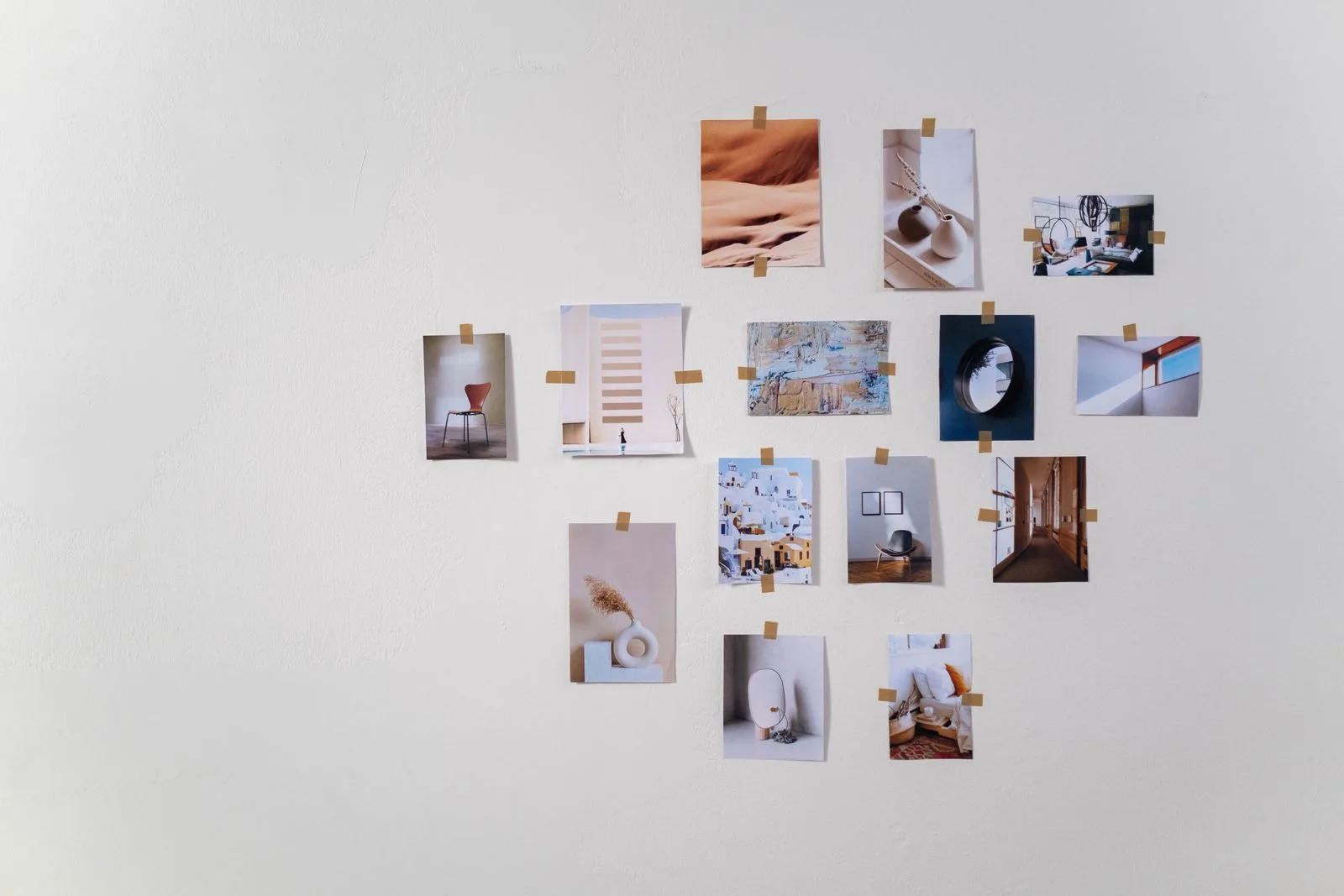
A Shopify portfolio page shows the work behind your products: the shoots, commissions, projects or pieces that prove what you can make. Photographers, artists, designers, custom furniture makers and studios that sell made-to-order work all need one, and Shopify does not ship a page called "portfolio". This guide shows how to build one with your theme, with a gallery app, or with a theme picked for it, and what to put on the page so it leads to a sale or an inquiry.
A portfolio page on Shopify is a normal page with a gallery on it. Check first whether your theme has a gallery, collage or multicolumn section that looks good with your photos. If it does, create a page template called portfolio, add the section, and assign the template to a page.
Add a gallery app when your theme's sections cannot do what your portfolio needs, such as category filters, one album per project, a lightbox, or a large number of images. What sections can do depends on your theme and its version, so check yours first. Choose a new theme only if you are changing theme anyway.
A portfolio on a store has a different job from a portfolio on an artist's website. It is there to move a visitor from "I like this" to "I want one", so plan it around three questions:
| Question the visitor has | What the page needs |
|---|---|
| Is this person good at what I want? | Your best work first, in large images, grouped by type |
| Can they do it for me? | A short caption per piece: material, size, client or project type |
| What do I do next? | A link from each piece to the product, the collection or a contact form |
Ten strong images grouped by category usually beat a hundred unsorted ones. If you sell both ready-made pieces and commissions, say which is which in the caption.
In Shopify, every page is built from sections (full-width areas such as an image banner or a slideshow), and sections hold blocks (the smaller pieces inside them, such as an image or a heading). You arrange both in the theme editor. Shopify's sections and blocks guide notes that the sections available depend on your theme and theme version, and that each template can have up to 25 sections.
The test that matters is whether the section crops your work. A square grid is fine for product shots, but it can cut the top off a tall painting or the side off a wide interior photo. If every section crops, that is a reason to use an app instead.
A portfolio works best as its own page in the menu, built on its own template so it does not change your other pages. Shopify's templates guide describes the steps; creating templates needs a compatible theme.
portfolio and base it on your default page template.portfolio template under Theme template, and click Save.The Theme template drop-down on a page lists templates from your current published theme only. You can build the template in an unpublished theme, but you can assign it to the page only after that theme goes live.
If your theme's sections cannot group, filter or enlarge your work the way you want, a gallery app can fill the gap. When you compare apps, check these points on each listing and in its demo:
Our comparison of Shopify gallery apps checks several apps against points like these. One of them is XO Gallery, our own app for gallery, portfolio and lookbook pages.
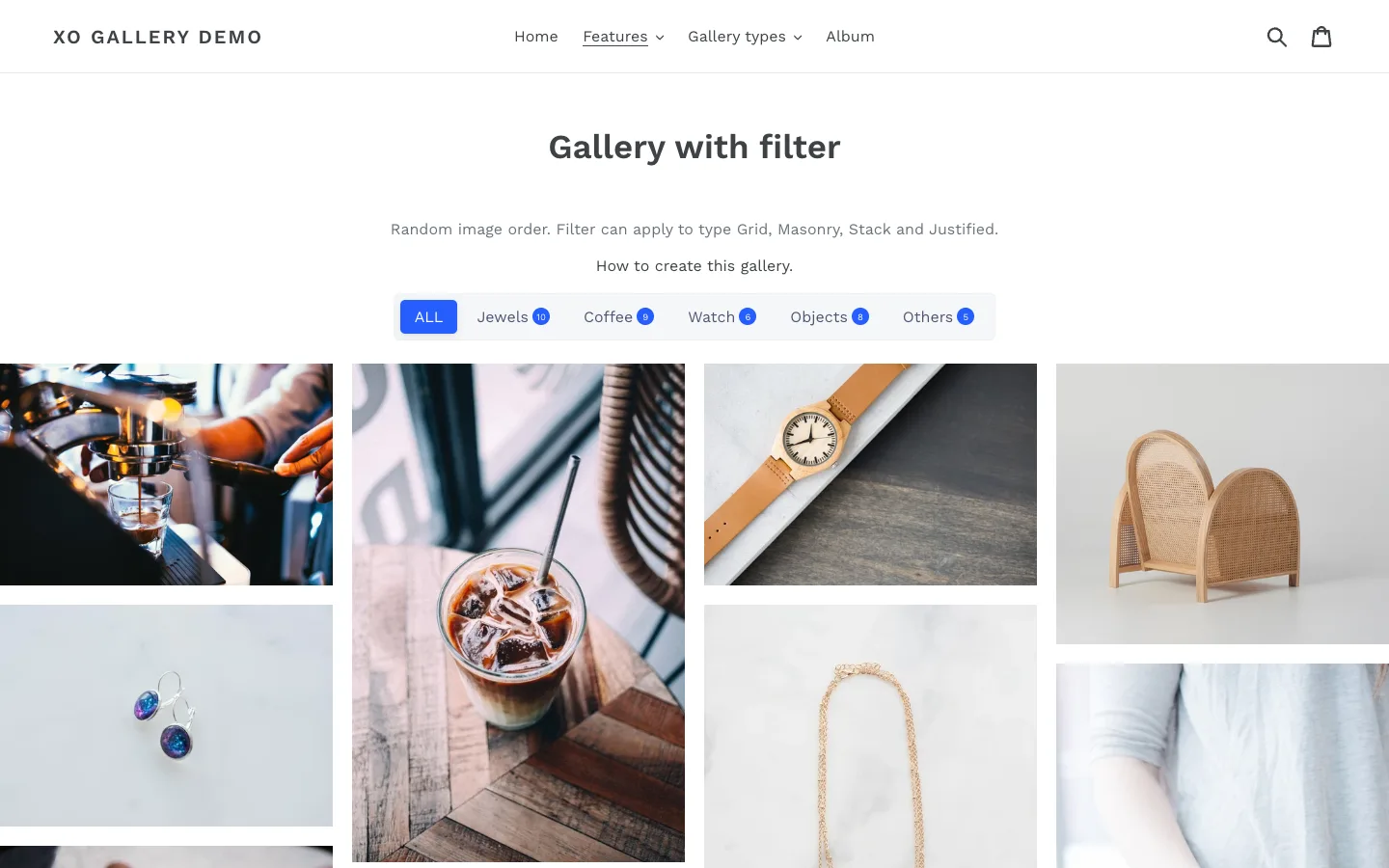
XO Gallery's listing names Portfolio among its gallery types, alongside masonry, justified, grid and lightbox layouts. The free plan covers a small gallery; paid plans add unlimited images, all gallery types and, on Pro, product links on images and unlimited albums. The screenshot is from its demo store: one gallery with a category filter bar, the Filtered gallery pattern described below.

If you searched for a "Shopify portfolio website template", the Theme Store has no portfolio category. Its catalog filters by industry, and Art is the closest one; its feature filters do not include image galleries (checked October 18, 2026). Read the Features list on each theme page instead, and look for Image galleries, Lookbooks and Image hotspot (clickable markers that link a photo to a product).
Shopify's free themes are a fair start. Dawn and Horizon both list Image galleries and Lookbooks among their features. If they display your work without cropping it badly, you do not need a paid theme for a portfolio.
Whatever theme you consider, open its demo store and judge it with your own kind of images in mind. Large full-width images and generous white space matter more here than a long feature list.
If you want a paid theme built around large images, our own Redefine theme is one option.
Redefine lists Image galleries, Lookbooks and Image hotspot among its features on the Theme Store, so a portfolio page can show your work in a gallery and link pieces to the products they show. Open its demo store and check how it handles your tallest and widest photos before you buy.
You do not need an exact copy of another store. Here are four patterns we suggest, depending on what you sell:
Start with the gallery sections your theme already has, on a page template of its own. If they crop your work or cannot group it by project, try a gallery app with filters and albums. If you want a portfolio section built or adjusted for your theme, contact our theme support team.